Plickers! An easy-to-use quizzing tool

Plickers 3

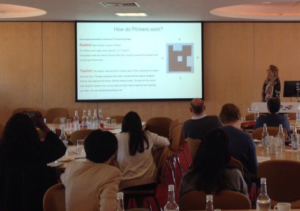
Demonstrating Plickers with the question ‘what do you think Brighton pier should be called’?

The TEL team recently demonstrated Plickers at the annual University of Sussex Teaching and Learning Conference 2016

The theme of the conference was inclusivity. To build on this theme, we demonstrated how to use technology to encourage participation with two TEL favourites, Padlet and Plickers.

Padlet is an online wall that students can add to with just a double-click (text, a document, a video clip or audio file). Plickers are paper voting cards that combine with a clever little app to receive feedback. We will look at Plickers in more detail in this post. 

Why use Plickers?

Plicker

Print your own Plickers (available in sets of 40 or 63). C is selected by this Plicker as C is at the top.

You can use Plickers in a variety of situations such as teaching, training, research  – any time that you want to get feedback or encourage interaction within a group. 

Plickers are readable paper shapes. You distribute these to students who then interact with a question that you ‘push’ to a LiveScreen view. Each student uses the Plicker to indicate their answer/opinion which you can receive by scanning your students with the Plickers app.

The great thing about Plickers is that only you, the tutor needs a working Smartphone. Even if students all have their own Smartphone, they may have phones that don’t work effectively to participate in an activity that relies upon an app. For example, they may have limited memory with no space for a new app or a battery that doesn’t last the length of a seminar.

There are additional issues that you need to be aware of when using polling technologies that rely on Smartphones:

  • A lack of (or intermittent Wi-Fi) to download the app.
  • Individually downloading apps taking up seminar/session time.
  • Tutors not wanting to use mobile phones in sessions.

The steps to using Plickers

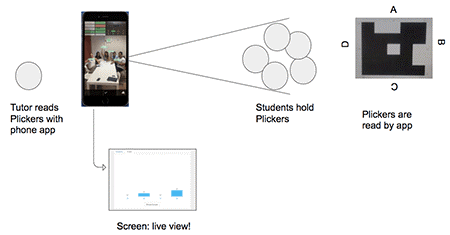
Here is an outline of the steps involved in using Plickers with your group. The diagram below demonstrates what is happening and how the Plicker cards are being read.

  1. Give out Plickers
  2. Ask a question
  3. Student holds the shape up to represent their answer
  4. Tutor takes a ‘picture’ (students not captured, just Plickers) through the Plickers app
  5. Voila! Student responses are immediately displayed on the Plickers Livescreen view on your slide

Plicker 2

Questions, questions, questions

Asking questions using Plickers

flickr photo by Fred Seibert shared under a Creative Commons (BY-NC-ND) license

Questioning students in seminar time is a great method to engage students and check that they are keeping up with your lesson. You could use the Plickers for all sorts of activities. Here are ideas for using Plickers with students in seminars. 

  • Exit tickets (or immediate feedback on the session)
  • Check learning in session
  • Debate! Discussion questions (not just for right and wrong answers)
  • Decide upon revision topics

Plickers can work without Wi-Fi. You won’t be able to display the resulting graph data through LiveView but you can still scan your students and see the results and save for your own data. So it could even be used outdoors for field trips. 

You can add your class list to Plickers so that each student is personally identified or you can distribute randomly to make the voting anonymous. Students can reuse the Plickers for as long as they last. You can also collect data and export if you would like to keep a record of responses. If you want to create your own set, print them from the website. Remember to laminate in matte laminate or the shine from lights can prevent the card being read by the app. You can also buy a set from Amazon

Limitations?

The maximum number of students you can use with Plickers is 63. Sometimes the Plickers are not all picked up within one scan. However, you can re-scan the room and the stray Plickers will be registered without duplicating previously captured responses.

Plicker, the punk rock clicker

Dr Lucy Robinson tried Plickers shortly after the conference and blogged about it. Here is an excerpt…

‘When I attended Sussex’s Annual and Teaching conference I was introduced to the idea of using Plickers (paper clickers) in teaching and I knew this was something we could play with.’

Read more of Lucy’s exploration with Plickers in her blog post Plicker the Punk Rock Clicker.

Give Plickers a try! You only need one person in the room to have a working Smartphone. Plickers are unlikely to let you down as even if you are without Wi-Fi you can still capture your students responses. It’s a fun activity that everyone can join in and it gets your students engaged and moving.

Here are help guides for Padlet and Plickers if you would like to try these for yourself:

Tagged with: , , , ,
Posted in Polling tools, Technology Enhanced Learning

Using forums effectively – ways to improve engagement

Forums for learning
In a Virtual Learning Environment such as Study Direct (Moodle), forums can be a great way to share course information, build community and allow students to easily share resources and ideas.

Last year our post The benefits of lurking in higher education explored the ways in which learners engage with forums.

However, often these forums can seem quite sparse and neglected. So how can we encourage students to actively engage with forums? Below are a few key tips to help you make the most of the forums in your modules.

Set out clear expectations

It is important to set out clear expectations at the beginning of the module, both expectations that you have of students as well as what students can expect from you. Make it clear how often you would like students to contribute to the forum as well as your commitment to monitor the forum and respond to queries and requests. Be sure to set out clear instructions and guidelines in the description of your forum. In these instructions you might also want to ask students to read previous posts before asking a question to check if their question has already been answered. Also encourage students to give threads clear titles so that information can be found easily. This will avoid you having to write the same response numerous time, and might even cut down the number of questions you receive by email!

Set specific tasks

Creating community with forums

flickr photo by tecabh shared under a Creative Commons (BY) license

Focussed tasks give students more reason to write a forum post. You could set exercises in seminars and lectures that involve students reflecting on the week or finding an interesting journal article or news item and sharing it with the group.

This could also be an opportunity for students to work in pairs or study groups, for example completing peer review exercises, something that again may encourage students to engage with forums whilst building a sense of community among the cohort. You could start off by asking students to introduce themselves to the group, this helps students get used to using the forum and alerts them to where it is positioned on the site.

Consider separate forums

You may want to think about creating separate forums for different functions, for example one forum to deal with general requests around admin issues and one for topic discussions. However, be careful not to overpopulate your module site with too many forums.

Consider group size

You may want to consider the number of students that have subscribed to a forum. If your lecture size is 500 and all students are actively engaging, this would make for a very busy forum! In this case, splitting your students up into smaller groups, perhaps seminar groups, would be a better option. At the same time, a group of five or six would probably result in less interaction as the group is so small. Think carefully about what would work best for your students. See this Study Direct FAQ – How do I set up groups? – if you would like help setting up groups in your module site.

Add a first post

A blank canvas can be quite daunting, it may be a good idea to add the first post on your forum yourself. This could be an introduction and welcome to the course or an ice breaker activity for students to complete perhaps asking them to explain their interest in the module.

forum pic 3

Remind students

Remind students throughout the module to continue their contributions to the forum. A small reminder in your lecture slides or during seminars might be useful as will the specific forum tasks and activities mentioned above.

Encourage commenting

Using forums for learning

flickr photo by jamespia shared under a Creative Commons (BY-NC-ND) license

Forums are about building interaction between students. You can encourage this by getting students to not only author posts but also comment on others’ posts, building a dialogue between students. You might also want to encourage students who ask particular (non-personal) questions via email to add these to the forum so that other students can benefit from the answers.

In Study Direct, the University of Sussex’s Virtual Learning Environment, there are four different forum types to choose from:

  • A single simple discussion – this forum type allows for one topic to be discussed and appears on a single page, this is useful for short discussions that are focussed around a single topic
  • Standard forum for general use – this is the most appropriate for a general purpose forum and allows both students and tutors to post a new topic at anytime
  • Each person post one discussion – each person subscribed to the forum can post one new discussion topic which everyone can then reply to, this could be used for example to ask each student to reflect on the week’s topic
  • Q and A Forum – this forum type requires students to create their own post before being able to view other students’ posts, after they have added their post students can then review and respond to other posts

Forums can be a positive way of developing a dialogue, creating community and allowing students to reflect and feedback. Furthermore, forums are a useful way of turning your module site from a passive to an active environment and have the added benefit of reducing the number of emails you receive from students! If you would like further help with using forums please contact your school’s Learning Technologist or email tel@sussex.ac.uk.

Tagged with: ,
Posted in Study Direct, Technology Enhanced Learning

Exploring Openness at #OER16

This year I attended the 7th Open Educational Resources Conference. ‘OER16: Open Culture’ held on 19th-20th April 2016 at the University of Edinburgh. For the uninitiated, ‘Open educational resources (OER) are freely accessible, openly licensed documents and media that are useful for teaching, learning, and assessing as well as for research purposes’ (Wikipedia). OER16 saw the annual coming together of the openness movement.

flickr photo by fastfonz https://flickr.com/photos/asintjago/5549078477 shared under a Creative Commons (BY) license

flickr photo by fastfonz https://flickr.com/photos/asintjago/5549078477 shared under a Creative Commons (BY) license

In preparation, I’d participated in the Take 5 Open course during Open Education week. Part of the course involves sharing your thoughts and opinions on a Padlet wall.  This was a big deal for me.  I’m used to sharing my thoughts and observations online in my personal domain but not so in a professional capacity.  Readily sharing information about nights out, food I’ve consumed and sleep quality but nothing of any real depth.  With the theme of Open Culture for OER16 I was hoping to gain a greater understanding from an institutional perspective but was pleasantly surprised to also gain some personal insight.  Read more ›

Tagged with:
Posted in Open Education, Technology Enhanced Learning

‘Speak’ your documents with Google Voice Typing

Google Voice typing tool

Talk instead of type your documents! by psd shared under a Creative Commons (BY) license

Today we are introducing Google Voice typing, a feature of Google documents which allows you to dictate and format your documents by voice.

Voice typing is an effective free tool. It could prove useful to anyone wanting an alternative to typing. 

First, what are Google docs?

Google documents are one of a range of free tools offered by Google housed in Google drive.

The docs, slides and sheets (word processor doc, presentation slides and spreadsheet) are stored in a Google drive, they are online (cloud-based) and they ‘sync’ (all catch up with each other). You can access your Google Drive contents from any device and you don’t need to press save – they constantly update.  Read more ›

Tagged with: , , ,
Posted in Learning Design, Technology Enhanced Learning

Doing it digitally – presentations

Digital presentations

Creative Commons for free images! flickr photo by Kalexanderson shared under a Creative Commons (BY) license

Giving presentations is as much part of academics’ lives as it is their students’. Whether presenting at a conference or in an undergraduate seminar, there are digital tools to help with every step of the process.

In previous posts such as Smarter study – 5 essential apps for students, Clever apps for smart researchers and A-Z of apps, reloaded! Piktochart, Plickers and Trello, we have discussed many different tools to help with aspects of academic life. This time, however, it is all about presentations and the many ways you can ‘do it digitally’.  Read more ›

Tagged with:
Posted in Technology Enhanced Learning

Designing digital learning activities and interactions

Learn

flickr photo by opensourceway shared under a Creative Commons (BY-SA) license

In the face of the myriad of technologies available to support teaching and learning, considered approaches to the planning of activities and integration of technology into curricula have never been more important.

Universities across the sector have invested in specialist learning technology provision to aid this process while initiatives such as the Jisc Building Digital Capability project have provided individuals and institutions with the means of evaluating digital skills, informing training provision and shaping the development of professional practice.

When transitioning to the digital environment and seeking to embed technology in teaching it’s crucial to reflect on your pedagogical goals before progressing to think about the practical implementation of technology in your practice. What is it that you want students to do/learn using technology?  What level of engagement are you looking to achieve?  Read more ›

Tagged with: , , ,
Posted in Learning Design

Happy Easter from @SussexTEL

Happy Easter from the Sussex TEL team

flickr photo by flythebirdpath shared under a Creative Commons (BY-NC) license

Posted in Technology Enhanced Learning

Technology meets One World Week

One World Week at Sussex. Exploring how we can use technologies to collaborate and communicate across the globe.

One World Week starts Monday 14th March

This week, 14-20 March, is One World Week at the University of Sussex.

One World Week is an annual event which features a great programme of events, from performances and competitions to talks and debates, all of which aim to celebrate the diversity of cultures and nationalities here at Sussex.

Take a look at the programme of events this year featuring a Technology Enhanced Learning seminar!

One World Week is a great opportunity to look at the ways in which technology can keep students connected with the university, even when they are physically away from the university for long periods of time, such as during placements.  Read more ›

Tagged with: , , ,
Posted in Technology Enhanced Learning

About our blog

We are the Educational Enhancement team at the University of Sussex. We publish posts each fortnight about the use of technology to support teaching and learning. Read more about us.

Subscribe to the Blog

Enter your email address to receive notifications of new posts by email.

Archive